

Looking to rent GPUs? See Finding & Renting Instances and SLA Coverage.
- Setup: installing Ubuntu, creating disk partitions, installing NVIDIA drivers, opening network ports on the router and installing the Vast hosting software.
- Testing and troubleshooting all issues that can arise, such as driver conflicts, errors, bad GPUs, and bad network ports. Vast does not offer support for getting your machine working. Connect your Vast host account to our Discord to access our host-only discord channels to chat or seek help from other hosts on the platform.
- Managing your offers, including pricing and offer end dates
- Planning maintenance so that no active rental contracts are disrupted
Account setup and hosting agreement
You must create a new account for hosting. If you are using Vast.ai as a client, do not use the same account. Using the same account for both client and hosting is not supported and you will quickly run into issues. Once your account is created, open the host setup guide. There is a link in the first paragraph to the hosting agreement. Read through the agreement. Once you accept, your account will then be converted to a hosting account. You will notice there is now a link to Machines in the navigation, along with some other changes. Your account can now list machines that are running the daemon software.Machine setup
The host setup guide is the official documentation for setting up a machine on Vast.ai. Read through each section closely. Common issues to check:- Make sure to test the networking. Clients require open ports to directly connect to the machine for most jobs.
- Make sure to read the section on IOMMU if you have an AMD EPYC system.
- Make sure to disable auto-updates so that your machine doesn’t drop a client job to update a driver.
General concepts
Clients have high expectations coming from AWS or GCP. As a host, plan to offer 100% uptime for your machine during the rental period. Expect that the GPU is going to be used at close to max capacity for the rental period. Ensure that your Internet, power source and heat dissipation systems are all functioning and that you have thought through how hosting will affect each one of those items.Offers and Rental Contracts
Hosts can create offers (sometimes called listings) through the CLI commandlist machine or the GUI on the host machines page. SLA claim and confidence require Set Pricing → SLA in the console or REST create_asks/ — not vastai list machine today (see SLA Offers).
The main offer parameters include:
- the pricing for GPUs, internet, storage
- the discount schedule param which determines the price difference between on-demand and reserved instances
- the min bid price for interruptible instances
- the min_gpu param controlling ‘slicing’ (explained below) — same concept as CLI
min_chunk/-m - the offer end date, which determines how long the offer accepts new rental contracts
- SLA (uptime guarantee): Optional add-on for on-demand listings. You set a Claim (reliability you believe you can deliver) and Confidence (how tightly SLA charges are priced around that claim). Clients choose their own reliability target at search/rent time. Start with How it works (plain English), then read the economics walkthrough before enabling SLA. Renters: see SLA Coverage.
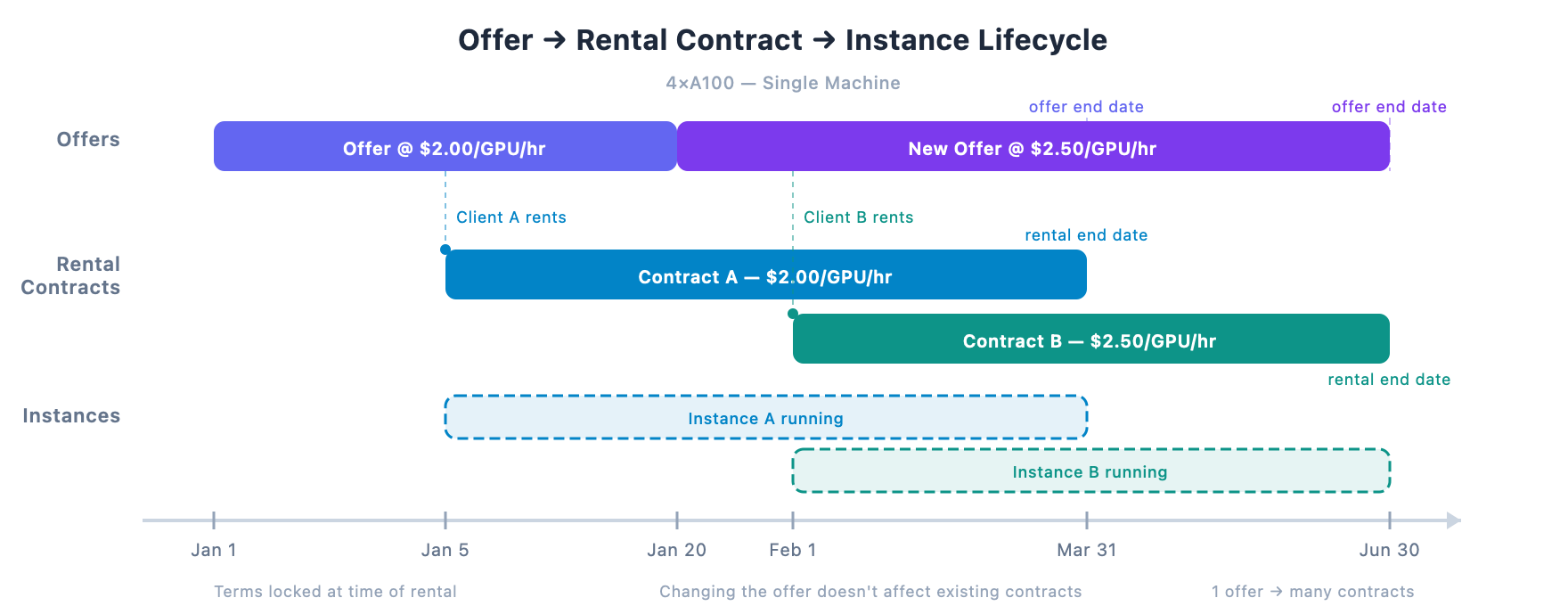
The Rental Contract
By listing your machine, you create an offer visible to potential clients. A rental contract is created each time a client accepts your offer by renting an instance. The rental contract locks in all of the offer’s terms at the time of rental, including pricing, the rental end date, and hardware specs, and those terms cannot be changed afterward. Each rental contract is independent. You may have multiple active rental contracts from different clients on the same machine, each with its own rental end date and pricing. SLA terms lock at rent time — see SLA on extended contracts. As the host, you are committing to provide the services as advertised in your offer:- the host must provide the hardware/services according to all the advertised specs
- the hardware can not be used for any other purposes
- the client’s data must be isolated and protected according to the data protection policy
- the advertised services must be provided until each rental contract’s rental end date
Offer End Date
The offer end date is your commitment to how long you will keep the machine online and fully functional. The pricing you set is the rate you’ll be paid for that commitment. Together, these form the terms of your offer. You can set the offer end date in the hosting interface by clicking on the date field under expiration, or via theend date field in the CLI list machine command. Make sure to set an offer end date before listing your machine, or the offer will remain open indefinitely.
How the offer becomes a rental contract
When a client rents an instance from your offer, all of the offer’s terms at that moment, the offer end date, the pricing, and the hardware specs, are locked into a rental contract. The offer end date becomes the contract’s rental end date (shown in the UI as “client end date”), and the pricing becomes the contract’s rate. Once created, a rental contract’s terms cannot be changed, not by modifying the offer, not by unlisting the machine, and not by any other host action.Can I change the offer?
Yes, but changes only affect future rental contracts. Existing rental contracts keep their original terms:- Changing the price does not change the rate on any existing rental contract
- Shortening the offer end date limits the commitment window for new clients, but does not shorten any existing rental end date
- Extending the offer end date allows new clients to rent for a longer period
- Unlisting the machine prevents new rental contracts entirely, but existing ones continue at their original pricing and rental end dates
Example: Multiple rental contracts from different offers
You list a 4×A100 machine at $2.00/GPU/hr with an offer end date of March 31. On January 5, Client A rents 2 GPUs. A rental contract is created at $2.00/GPU/hr with a rental end date of March 31. On January 20, you decide to raise the price. You unlist the current offer and relist at $2.50/GPU/hr with a new offer end date of June 30. On February 1, Client B rents the other 2 GPUs from the new offer. A rental contract is created at $2.50/GPU/hr with a rental end date of June 30. You now have two active rental contracts on the same machine at different prices and different rental end dates. Client A’s contract stays at $2.00 through March 31. Client B’s contract stays at $2.50 through June 30. You must keep the machine online and fully functional through June 30 to honor both contracts. The UI shows June 30 as the latest rental end date on this machine.Min GPU
When clicking on the set pricing button, there is a min GPU field. The min GPU field allows you to set the smallest grouping of GPU rentals available on your machine in powers of 2, or down to 1. For example, if you have an 8X 3090 and set min GPU to 2, clients can create instances with 2, 4, or 8 GPUs. If you set min GPU to 1, then clients can make instances with 1, 2, 4 or 8 GPUs.On-demand Price
The on-demand price is the price per hour for the GPU rental. On demand rentals are the highest priority and if met will stop interruptibles.Interruptible min price (optional)
The interruptible price allows for the host to set the minimum interruptible price for a client to rent. Interruptibles work in a bidding system: clients set a bid price for their instance; the current highest bid is the instance that runs, the others are paused. more infoReserved Discount Pricing Factor
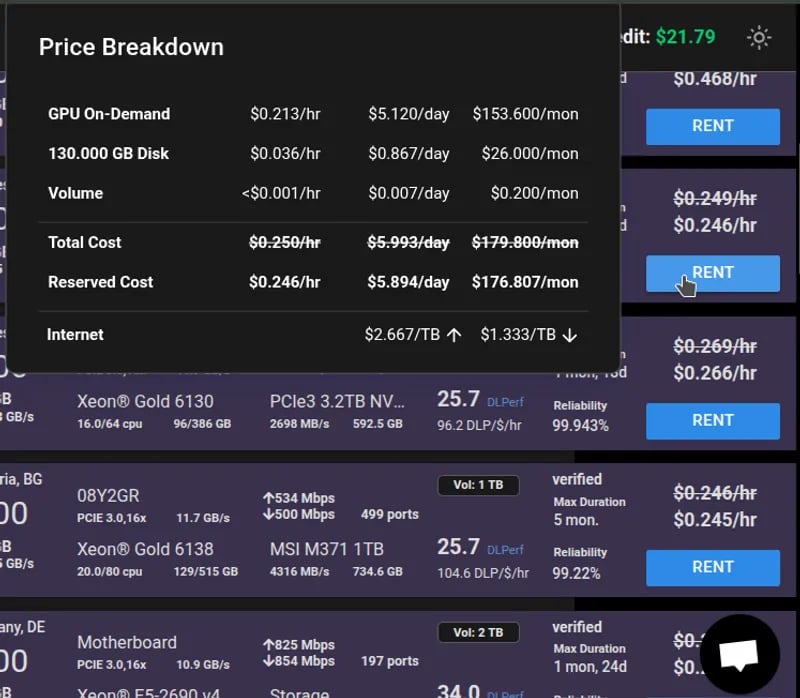
Reserved Instance Discounts are a feature for clients which allows them to rent machines over a long period of time at a reduced price. The Reserved Discount Pricing Factor represents the maximum possible discount a user can achieve on your machines. The reserved discount pricing is determined by the hosts. If you intend to encourage a long term rental this is a factor that you may want to research. Use the filters in the UI to select reserved.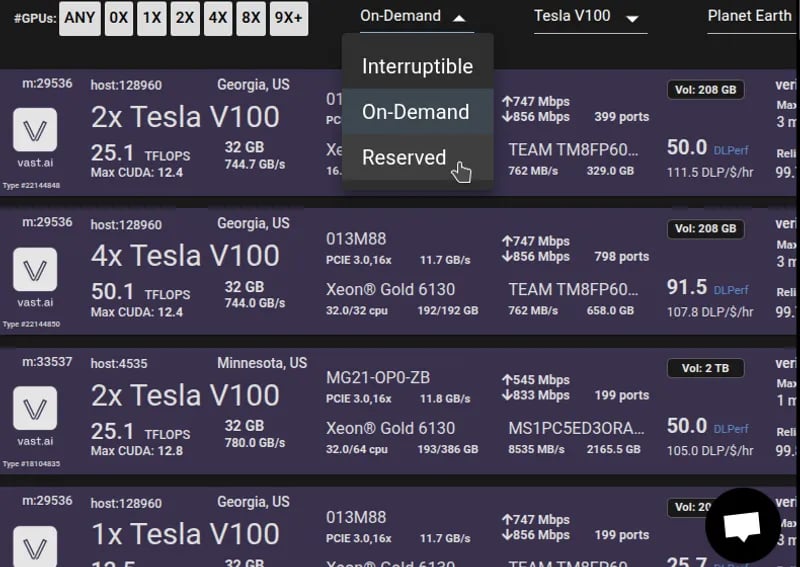
Volume Offers
In addition to GPU offers, hosts can create volume offers on machines. A volume offer is an offer for storage space, and can be priced separately from GPU offers. The space allocated for volume offers is in the same pool of space as that for GPU offers, meaning that space will not be subtracted from available offers unless it is in use. When a client rents a volume offer, they rent a subset of the total space set for the offer, up to the total amount.Storage Usage
Allocated storage (that is, storage in use by client rental contracts) is subtracted from the total storage available on a machine, and split up proportionally among the machine’s GPUs in remaining GPU offers. For example, on a machine with 1000 GB of disk available and 2 GPUs, a host can create a volume offer of up to 1000 GB. If they create a volume offer of 500 GB, and it is not rented, the machine will be available for rent with 2 offers of 1xGPU 500 GB and 1 offer of 2xGPU 1000 GB. If 200 GB of the volume offer are rented, the GPU offers will reduce to 2 1xGPU 400 GB offers and 1 2xGPU 800 GB offer. The volume offer will still remain, as there is still available space, and update to offer 300 GB. Similarly, if stored instances on the machine are taking up 800 GB, the volume offer will reduce to 200 GB. If stored instances are only taking up 400 GB, the volume offer will not update, as there is still enough space on the machine to cover the volume offer.Listing Volumes
By default, volume offers will be listed with GPU offers at the same disk price for half of the available space on the machine. Only rented space will impact the amount of space available for GPU offers, not the space in the offer itself. You can control the amount of space listed with the -v CLI option, and the price of the space with the -z option. Space is listed in Gigabytes, and price in $/Gb/Month.Text
vastai list volume command.
Text
Text
Out of Sync Rental Contracts
When a client deletes a volume, the space is automatically freed on the machine. If the machine is offline at this time, there is a job that runs hourly to free the space. If for some reason this is not working, or if you want to free the space automatically, you can run the commandText
Extending Rental Contracts
To extend the current rental contracts for all clients on a given machine, change the offer end date to a later time with the same or lower pricing. If you have raised the pricing, you cannot extend the current rental contracts.Testing your own machine
It is vital to test your own machine to ensure the ports and software are running smoothly.Set up a separate client account
There are two supported ways to test your own machine. If you want to use the website GUI, you will need to set up a new account on a different email address, add a credit card and then find your machine and create instances on it like a client. This has the benefit of showing you the entire client experience. Testing the recommended PyTorch template is vital to ensure that SSH and Jupyter are working properly.Use the CLI (preferred)
The preferred method of testing your own machine is to run the CLI. For Windows users, we suggest setting up WSL which will require you to install Ubuntu on your Windows machine and change your bios settings to allow virtualization. Then you can start an Ubuntu terminal and run the CLI. To rent your own machine you will need to first search the offers with your machine ID to find the ID and then create an instance using that ID. The show machine command will show all your connected machines.Text
Text
create instance. This creates a test rental billed to your separate client account like any other rental (it is not free). Host earnings offset client spend only after rentals settle. This example loads the latest pytorch image along with both jupyter and ssh direct launch modes.
Text
./vastai instead of vastai when running from the install directory.
CLI self-tests create non-SLA rentals (
vastai create instance does not accept target_reliability). To test SLA contract terms on your own offer:- Create a separate client account (see above), or use REST from that account.
- In the console Search filters, set a Reliability target, rent your own offer, and confirm an SLA charge line before continuing — or
PUT /api/v0/asks/{id}/withtarget_reliability. - Destroy the test instance when done.
Maintenance
Prerequisite: Planned maintenance during active SLA rentals requires the Vast CLI or REST — there is no in-console scheduler. Install the CLI before you enable SLA — see Before you enable SLA. Remember that a single machine may have multiple active rental contracts from different clients, each with its own rental end date. All rental contracts must be honored. Unlisting the offer prevents new rentals but does not end existing ones. If you have active contracts, you can set the offer end date to match the latest rental end date so new clients rent instances that end together. Once that date is reached, unlist and perform maintenance. Use these paths in order:- Preferred (no active renters): Wait until all contracts have ended, then take the machine offline.
- Planned SLA maintenance (active renters): If SLA is enabled, use
vastai schedule maintwith a start time at least 24 hours in the future. See SLA Offers → Scheduled maintenance for credit eligibility. - Emergency or unplanned downtime: Use
vastai schedule maintimmediately to notify renters. Full SLA settlement exposure may apply.
schedule maint command supports planned and emergency notifications; advance notice and duration determine SLA credit eligibility. Optional: configure Host Notifications for host:maintenance_scheduled.
Uninstalling
To uninstall, use the Vast uninstall script located at https://s3.amazonaws.com/vast.ai/uninstall.Common Questions
How do I host my machine(s) on Vast? How can I rent my PC?
Hosting on Vast will require some Linux knowledge, as you will be maintaining a server. Our setup guide is here. After the first paragraph of the guide there is a link to the hosting agreement. Once you agree, your account will be converted to a hosting account. You can review our FAQ that answers many of your hosting questions.How do I get an invoice?
You can create an invoice by going to the “Billing” page, and then click the box for “Include Charges” under “Generate Billing History”.Why can’t I find my machine in search? / Why is my machine not listed?
If your machine seems unlisted or missing from console search:- Confirm Listed status on Host → Machines (console).
- CLI check:
vastai search offers 'machine_id=MACHINE_ID verified=any'— if this returns a result, your machine is listed. The GUI may lag behind CLI visibility. - Individual machines can be hard to find in broad console search; looking up by
machine_idis the reliable check. - Ranking check: Use narrow filters to see similar machines, e.g.
vastai search offers 'gpu_name=RTX_4090 cpu_ram>257 cpu_ram<258'.